• The move to the new server is done. There are some software and database maintenance updates in process. This has us passing the hat around to help out. We appreciate any donations. Seriously, even a dollar helps. The payment page may be found here - https://www.audiokarma.org/support.html

Windows based Media Server: Experiences & Insights

SimplySound

Kent Engineering & Fondry
I thought I’d create a thread for us to share our experiences optimizing a Windows based PC as a Media Server. A ‘Media Server’ is different from a ‘Streamer’ in that it maintains storage of the Digital content and generally doesn’t rely on the network to deliver that content, unless it is done locally via file sharing or DLNA.

A Media Server needs to leverage an OS to manage Files and support a play back program (aka: Player), usually with an interface into the Audio sub-system. There are a number of options for supporting the OS and also many various Players and interfaces that are available.

This thread specifically focuses on the use of Microsoft Windows as the underlying OS and will try to capture some of the learnings and resources that are available for slimming down and optimizing your Microsoft based computer for Digital Audio presentation. So let’s get started, tell us about your journey!

 
Register to hide this ad
I’m going to start with my journey into Digital Audio via hardware and then do some secondary posts about my understandings and implementations around the Windows OS specifically.

My Journey​

I have been using a Windows based Media Server for over 20 years. I chose Windows because as an IT professional I knew the underlying hardware and OS platform fairly intimately. Yes, there are other OS options out there, but my understanding is that ‘sonic qualities’ have a lot more to do with underlying hardware components than the OS itself. Arguments I’m sure could be made to the contrary, but there are many discussion threads out there on the internet for that!

I use a pretty old Antec Fusion Micro-ATX case and have been through a couple mother-board upgrades. I recently upgraded my hardware from an Asus M4A88T-M board (circa 2010) that used an AMD Phenom II 4-core processor and was running 8Gb of DDR3 1333Mhz memory. I put in its place an MSI Pro-B760M-P board with 32Gb of DDR4 3200Mhz memory. I used an Intel i5-12400F Alder Lake 6-Core Processor. I also put the new OS onto a Samsung 980-Pro 500Gb PCI Gen4/NVMe 1.3 drive.

I’m still using a fanless MSI Nvidia GeForce GT1030 video card. Although the Intel B760 chipset supports HDMI Video with an integrated GPU/CPU, I decided to go with the ‘F’ version (non-integrated GPU) of the CPU for cost. The older Nvidia Card supports HDMI 2.0b up to 4K @60hz so I’ll continue to use that.

For storage I have two separate 2TB SANDisk Ultra-3D SSD Drives, one for Video Content and the other dedicated to Music. I don’t have any HDD spinning disk within the platform to minimize noise (mechanical or electrical) and I used two Noctua Fans to cool the case. I do have a CPU Fan, but may go passive over time.

So this upgrade allowed me to go from Win10 to Win11 as an OS. And this led me on a journey of trying to figure out what needed to be removed to make this platform a dedicated ‘Audiophile Quality’ source solution for Digital Playback.

However, before I delve into that, let me provide some feedback on the sound quality (SQ) improvements from all of these hardware upgrades:
I definitely took a step up in the quality of playback. I believe a big part of this was getting the OS onto an NVMe drive. Digital content delivery is very dependent on timing and I believe any improvement in OS speed will have an impact on the SQ.

I’m not sure whether the move to Win11 also had an impact, but the fact that much of what happens in Windows under the covers relies on Windows Media Foundation (WMF) and the Core Media API’s could be in the mix.

Win11 has moved further away from support for Win32 app development, but since much of WMF and the API’s were built around Win32, they probably have been re-written for Win11. I’m not saying that Win11 sounds better than Win10, but just be aware that even though some say Win11 is just a glorified version of Windows 10, there is much that was done to streamline things in Win11, no doubt!

In closing, there are a few other hardware changes I want to consider heading into my digital future, but that’s about it for where I’m at now.
 
Last edited:

OS Optimization​

Now that I have my hardware upgraded, I'm focused on trying to optimize Windows 11 for a true audiophile experience.

In my use case, I am using JRiver Media Center v31 as my as my audio player. There are a number of quality player options available, but I’ve been using JRiver for quite some time and I’m comfortable with its interface. I listen to music in ‘Multi-channel Stereo’ mode in a 6.0 configuration, so my PC is directly attached via HDMI to my Anthem AVM-60 for room correction/balancing and DAC support.

I also use Kodi for Video presentation, but these are the ONLY two applications I run and I don’t do any streaming either within my network (DLNA) or from the outside.

I'm also realizing that much of what is out there for optimization of a Windows platform is geared toward Gaming. These postings valued a Video experience over the Audio component, and therefore represent a compromise on Audio presentation. It took some digging, but I soon realized that folks involved in production of Digital Audio using a Digital Audio Workstation (DAW) have some of the best insight into getting quality audio playback.

I started by following Apogee Digital's excellent optimization guide for Win10.

Another excellent starting point is from FocusRite Audio. They cover a lot of the same settings but also bring up Start Up programs.

These links should get the basics in place, but there's more to uncover.
 
Last edited:
Logitech Media Server
IEI ECW-281B-R20-N270 SBC
Wn7 Pro
MyCloud NAS SMB file server.

Material Skin web UI on any networked smart device.

Local Squeezelite player.
Remote Squeezelite players
Remote Airplay players
Remote DLNA players
Remote Chromecast players.
 
I thought I’d create a thread for us to share our experiences optimizing a Windows based PC as a Media Server. A ‘Media Server’ is different from a ‘Streamer’ in that it maintains storage of the Digital content and generally doesn’t rely on the network to deliver that content, unless it is done locally via file sharing or DLNA.

A Media Server needs to leverage an OS to manage Files and support a play back program (aka: Player), usually with an interface into the Audio sub-system. There are a number of options for supporting the OS and also many various Players and interfaces that are available.

This thread specifically focuses on the use of Microsoft Windows as the underlying OS and will try to capture some of the learnings and resources that are available for slimming down and optimizing your Microsoft based computer for Digital Audio presentation. So let’s get started, tell us about your journey!

I disagree with your definitions. In particular, you say the Media Server
generally doesn’t rely on the network to deliver that content

Except for the special case where one piece of hardware provides Serving, Storage, and Playing functions, the media server requires network access. In essence, a media server is not much different than a file server. A media server devoted to music media does not need the throughput required of a file server, unless, perhaps, a large number of simultaneous streams are sent. A media server may include processing routines specific to media handling, such as transcoding, in which case processing power may be a factor.

I think it best to treat the functions separately. The Media Server accesses Media Storage (local or remote) and serves content to a player where the player software is not necessarily running on the same hardware running the server software.

It seems that this thread is more focused on using Windows as a media player, and not solely as a media server.

I have two media servers in two locations feeding a total of 8 audio systems. Each location is set up similarly to what cpt_paranoia describes. In various configurations, my media servers have run on very old, low processing power systems. Currently, my media servers are running on ARM powered boxes (Inovato Quadra) that do not include the player function.
 
I have 5x10TB HGST drives in a USB3 enclosure giving me a 36TB array after parity. This is hooked up to a Celeron N5090 with 8GB ram. Alpine Linux distro doing software RAID, nfs and SMB. That itself is actually running in a xcp-ng(Xen) virtual machine because I want the extra 20MB/s off the Realtek NIC. That is my file server. All of my devices access files directly over SMB.

I have run any number of configuration of file-servers over the last 20 years; Windows based, FreeNAS, Seagate/WD appliances, Synology....as long they were able to push the files over the network in a reasonable fashion, they were never the factor in sound quality. We've gotten...really good over the last 50 years at moving data around. I would even be willing to bet the worst-configured modern Windows server pushing a file over a network would have less "errors" than the average CD player doing redbook in realtime.

Unless you're making your media server transcode or process every file it touches...then that's just a basic data copy. Plus most, if not all, of the file is copied to memory or buffered.
 
Except for the special case where one piece of hardware provides Serving, Storage, and Playing functions, the media server requires network access. In essence, a media server is not much different than a file server.
Agreed RTally, I was being somewhat narrow in my definition. Generally when you are talking a Windows Platform, it does provide Serving, Storage, and Playback functions. And yes, usually makes use of a Network interface for updates and file transfers.
 
I note the warning at the top of that Wiki article, about needing citations for verification. It is also more targetted at video media servers (note the list of Home Theatre apps, and TV tuner cards), rather than audio media. It's not Wiki's finest hour, certainly.

Like RTally, I don't agree a media server is generally a self-contained package of storage, library & playback; to me, a media server sits on a network, and serves media to control & rendering clients on that network. The actual storage, control & renderers may be implemented by devices spread across the network. That is certainly the three-part model of DLNA (Digital Media Server, DMS, Digital Media Controller, DMC, & Digital Media Renderer, DMR). Those three parts may be split across a number of devices on a network, or they may all be combined in a single, standalone device (even, for instance, an iPod).
 
Around and around we go, but back to the focus of this thread. Cantible Software produces VST (Virtual Instrument & Effects) software. Brad Robinson produced a really good free e-book called GlitchFree on optimizing a Windows PC for Audio. You can access it here if you are so inclined:
https://www.cantabilesoftware.com/glitchfree/

I had never heard of Nagle’s Algorithm or Spread Spectrum, but going to look into that.
 
Last edited:
but back to the focus of this thread.
Okay; maybe I missed the bit about optimising a Windows PC as media server.

I don't see how a VST platform is relevant to a media server.

Spread spectrum clocks in PCs are mostly to meet EMC emissions regulations. Essentially, they add a lot of jitter to the processor clock... Reduced EMC means lower levels of discrete RF spurii, but that energy is spread over a wider bandwidth, bringing up the general RF noise floor. Reduced discrete RF spurii might improve the audio performance of a connected, or internal DAC, but that raised noise floor might make it worse...

Spread spectrum comms has been around for a long time; used in GPS satellite broadcasts, and CDMA mobile data. And invented by Hedy Lamarr...

You really shouldn't need to be worrying about Nagle's algorithm for audio communications.
 
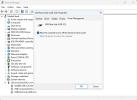
I'm going to pull the Apogee & Cantabile suggestions together in a post as a checklist at some point. However, I went back to look at my Power Settings and as the GlitchFree PDF pointed out, I found this setting lurking in there. I guess the USB Hub may or may not be tied to 'USB Selective Suspend', but take note to uncheck this!
 

Attachments

  • 1697208615613.png
    1697208615613.png
    54.6 KB · Views: 7
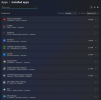
Ok, before I post a checklist, I guess the very first thing folks should do with a fresh Windows install is get rid of some of the bloat by doing an 'Add or Remove Programs' run through. Everyone is a bit different on what they want within their OS, but I have trimmed mine down to what I consider my bare essentials (35 Apps). Some elements of Windows may not have an uninstaller and might require some work arounds. Choose what makes sense to you. My Apps are displayed in the Snip-its below.

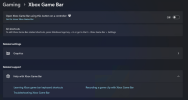
A note about the XBox Game Bar. I'd love to figure out how to uninstall it, but the only thing you can really do with the Game Bar is to turn it off and disable it in Services.
 

Attachments

  • 1697225304697.png
    1697225304697.png
    187.3 KB · Views: 11
  • 1697225360306.png
    1697225360306.png
    191.7 KB · Views: 11
  • 1697225497339.png
    1697225497339.png
    143.6 KB · Views: 10
  • 1697225930647.png
    1697225930647.png
    87.4 KB · Views: 11
  • 1697226084992.png
    1697226084992.png
    198.8 KB · Views: 10

OS Optimization Checklist​

Ok, thought I’d condense some things that are covered in the previous couple of links as a checklist. Understand that these settings are put in place for a Dedicated Audio Platform and need to be balanced with the needs of the user(s) and their use cases. And for full recovery if things go south, always set restore points as you work through these settings.

Feel free to comment or provide other relevant tweaks.
  1. Disable Sleep Mode
  2. Set Power Options to High Performance
  3. USB Port Power Management
    • Disable USB selective suspend in Power Settings
    • Check USB Hub Power Management Settings in Device Mgt.
  4. Disable Indexing on all Drives
  5. High Precision Event Timer (HPET)
    • The Gamers tend to turn this off in BIOS and in Windows because it can impact video. Those that are focused on Audio tend to implement it fully. Do some research.
  6. Manually set Page File size instead of computer automatically adjusting
    • Some disagreement over whether a Page File is necessary with enough memory.
    • Some consensus is 1024Mb is the bare minimum & appropriate.
  7. Disable Startup Programs
  8. Uninstall Windows Widgets (News Feeds & Recommendations)
  9. Disable System Sounds
  10. Switch off (Uninstall) unused Windows Features & Services
    • Hyper-V is a good example.
  11. Disable User Account Control
  12. Disable Visual Effects and Processor Scheduling
  13. Disable 'Windows Background Apps'
    • Web browsers (Chrome, Edge etc.)
    • Office applications (Word, Excel etc.).
  14. Disable Fast Boot
  15. Turn on s4/s5 on your motherboard
  16. Disable "C States" in the BIOS
More aggressive steps that may or may not make sense for your use case.
  1. Disable 'Windows updates from more than one place'
  2. Disable Windows Firewall, anti-virus and spyware software
  3. Disable Unused Network Cards
    • If maintaining your Network Card then only QoS Packet Scheduler & Internet Protocol Version 4 (TCP/IPv4) are needed.
    • For Internet Protocol Version 4 (TCP/IPv4) disable NetBios over TCP/IP.
 
Last edited:
Disable Playback Device (Sound) exclusive mode
That's probably the one setting I wouldn't change.

Allowing an audio player to take exclusive control of a sound device means no mixing or other mucking about with the audio path.

If you want to be able to record what you are playing (e.g. with Audacity), you need exclusive mode off.
 
I went in and 'revealed' the Core Parking setting on my system as outlined in the GlitchFree document. It was set to 4% as a default and I increased it to 100%, per their recommendation. YMMV!

Core Parking
Core parking is feature available in some modern processors (eg: Intel i7 processors) in which entire CPU cores can be shutdown to save power. This is good for power management but can affect real-time audio performance because there is a small delay when unparking which can lead to drop outs if that processing power is needed.
 
i've been following tweakhound for quite a while now. eric has tweaking lists for all versions of windows, here is windows 10. you can find links to other versions on the sidebar.


he doesn't just tell you "do this," he explains why/what.

noteable tweaks:

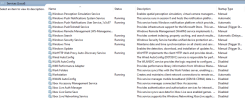
Annotation 2023-10-16 110428.pngAnnotation 2023-10-16 110355.png

in services:
i also disable "remote registry"
"touch keyboard/handwriting panel"
anything to do with microsoft edge update( i don't use edge)
anything to do with google chrome update(i update manually)

i used to disable a lot of stuff in services but i no longer do, windows does a decent job of managing resources as long as you have a decent system and having services set to "manual" is usually enough nowadays.

fwiw, i am not an expert. i've been building/repairing computers for close to 20 years. i studied for years to get my comptia a+ cert. but when i really decided to buckle down and do it, they changed the format to include mobile devices and apple products. **** that, **** them. why learn something that i know i will never EVER use?

comptia is a money grab.
 
"Disable" = Off... no?
Correct. But only if you want Audacity to be able to record the current audio stream; that is not a primary requirement for an audio playback device. So, in most playback-only systems, you want the playback to be able to have exclusive control, so you need exclusive mode enabled.
 
So, in most playback-only systems, you want the playback to be able to have exclusive control, so you need exclusive mode enabled.
Makes sense, in a DAW use case there may be other Audio Apps in focus, but with dedicated playback, just the player is in focus. I'll take that out of the check list.
 
Back
Top Bottom