CPU Processing is the key!
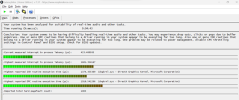
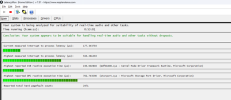
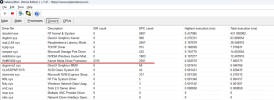
Now, I had followed pretty much all of the guides and links posted previously, but obviously was still struggling with latency issues. I searched around for folks that had done some improvements to the output from LatencyMon and ran into
this YouTube video from a guy named NeoFirox.
He’s definitely a gamer, and I believe he may be German, so sometimes his accent comes through. He does struggle at times to put things into
‘plain English’ and he goes through things pretty fast. I will also say he at times just
‘wings’ a setting and says he doesn’t exactly know why he did something, but it works for him. I guess I get it, he’s compiling a bunch of known tweaks. But these are the bits I think really helped me:
Get the BIOS straightened out.
- He makes the point of making sure you are on the latest release of your BIOS, and I get it. Newer boards/chipsets will have drivers that may still be evolving at the time of release.
- My MSI board came with a BIOS v1.4 and just the other day they released v1.6 to fix some issues with the CPU utilization.
- The point is, for the first year or so of your motherboard’s release, it is important to keep your BIOS updated.
- Disable anything that has to do with virtualization. Virtualization has made it into client OS’s for development and also to support VDI, but it has no place on an Audio Platform.
- So, be sure to disable Intel Virtualization support including Intel VT-D.
- Also disable Hyper-threading, your CPU cores should only be processing a single thread and shouldn’t be ‘switching’ to attempt multi-processing.
- I disabled Intel Speed Shift Technology to allow the OS to control P-States. And I also disabled Intel Turbo-Boost Technology so that the CPU maintains its frequency of processing. My position is that you want a very stable platform for processing a digital stream and don’t want the CPU cores to fluctuate with power/speed.
- The final piece of the puzzle in the BIOS for me was to disable the C-States so that the CPU cannot control any of the core power settings.
Get your power settings SET.
- I had ‘unveiled’ the Core parking setting in the Ultimate Power Plan, but there we are couple other settings I had not seen before like:
- Processor idle demote threshold (set @100%)
- Processor idle promote threshold (set @100%)
- Minimum & Maximum Processor State (set @100%)
- And since I don’t have an integrated GPU on my processor, I found the NVidia tweaks to be informative.
- And finally, the Message Signaled-Based Interrupts (MSI) tweak for my NVidia driver revealed that it wasn’t running in MSI mode. So that got fixed!
Conclusions & Opinions
That about covers the things I put in place from this video and it definitely improved my latency. I haven’t played around yet with setting up the CPU Affinity, but that’s next on my list of to-do’s to see if I can reduce the latency even further.
I will say that my sound quality (SQ) has improved as I’ve gotten further into these tweaks. My soundstage is broader, instruments have more separation and depth, and the overall detail has improved.
I haven’t tested Fidelizer since I started doing these tweaks, but I’m wondering if I’ll really notice much difference now. Is Fidelizer doing much of this under the covers, or is it prioritizing the Audio process even further? Who knows?
I will say one last thing about latency, and
this is my personal opinion; because we have separated the DAC from our Transports with a Media
‘Platform’, I believe that even with buffers in place for output and input, it’s the old
garbage-in-garbage-out scenario.
If the timing of the feed to the DAC buffer gets skewed in any way, it’s not possible to re-establish the proper timing. And this is why latency is so important for presentation from any source. You need to establish a stable, consistent timing of the feed. Yes, you can point to it being an
‘asynchronous’ interface between the Media Center and the DAC, but that doesn’t mean it doesn’t matter.
That’s my personal opinion, and I’m sticking with it!